WatchDeck Guide
Everything you need
to know
A complete walkthrough of every feature — from tracking your first show to getting the most out of personalised recommendations.
Your streaming life, unified.
WatchDeck is a streaming companion that brings everything you watch into one place — tracking shows episode-by-episode, managing your movie wishlist, and surfacing personalised recommendations based on the services you actually subscribe to.
Dashboard
Your daily command centre. See upcoming episodes, your tracked shows at a glance, and personalised picks waiting for you.
Show Tracker
Track every series you follow. Episodes are sorted by air date so you always know what's on and what you've missed.
Movie Watchlist
Save movies you want to watch. WatchDeck tells you when they're streaming on your services — and alerts you before they leave.
Discover
Browse personalised recommendations filtered to your services, genres, and taste. Find your next obsession without endless scrolling.
Settings
Connect your streaming services and set genre preferences. These two things power every recommendation and alert in the app.
Search
Search for any show or movie directly from Discover and add it to your tracker or watchlist in one tap.
Recommended first steps
Connect your streaming services
Go to Settings → Streaming Services and select every service you subscribe to. This is the most important step — recommendations, filters, and availability alerts all depend on it.
Set your genre preferences
In Settings, scroll to Genre Preferences. Select genres you enjoy (they'll be weighted in your recommendations) and block any you never want to see.
Track a show
Head to Discover or use the search bar, find a show you're watching, and click Track. It will appear in your Show Tracker and Dashboard immediately.
Save a movie
Find a movie in Discover or search, and click the bookmark icon to add it to your Watchlist. WatchDeck will show you when it becomes available on your services.
WatchDeck is built around your subscriptions — not generic trending lists. The more services and genres you configure in Settings, the more accurate and useful every part of the app becomes.
Dashboard
Your home screen. Every time you open WatchDeck, the dashboard gives you a full picture of what's on, what's coming up, and what you might want to watch next.
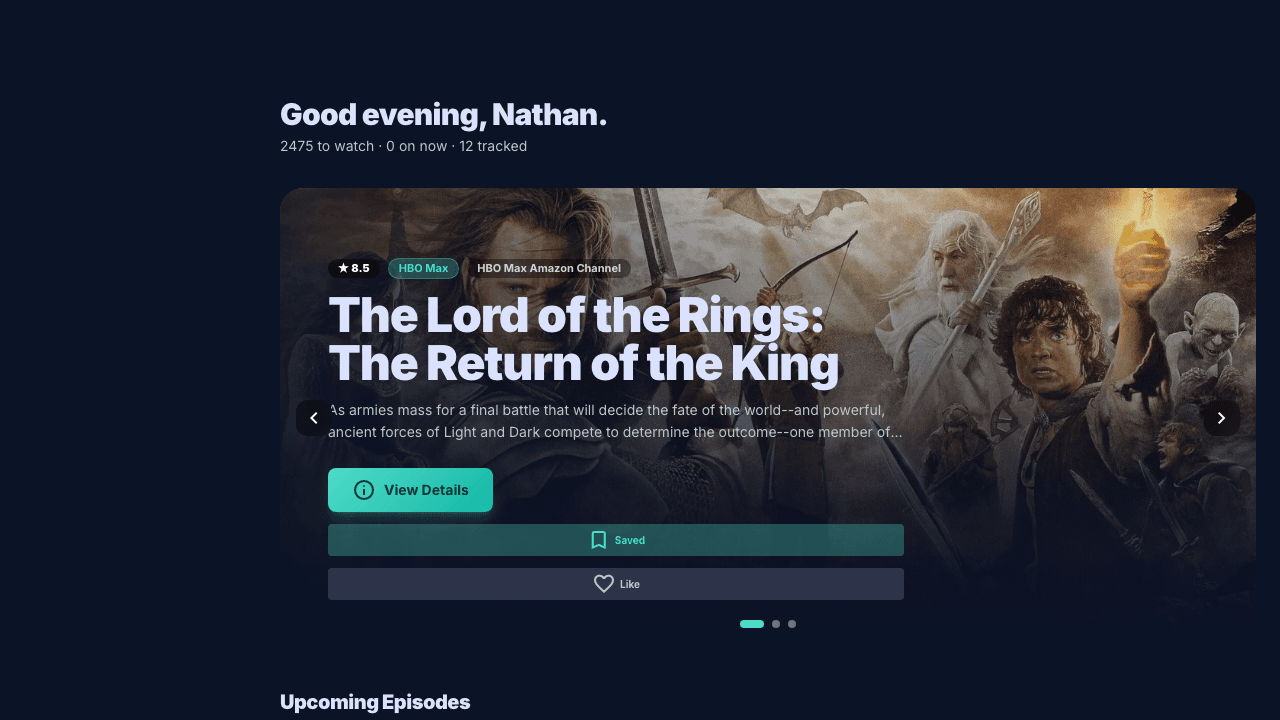
Hero Carousel
Rotates through your tracked shows, surfacing the next unwatched or upcoming episode for each one. Click any show to jump directly to it in the tracker. The fastest way to pick up where you left off.
My Shows Grid
A full grid of every show you're tracking. Each card shows the show name, your watch progress, and the next episode date. Scroll down to see everything at once.
Recommended for You
Personalised TV and movie picks scored against your genre preferences and connected services. These are not promoted titles — they're ranked by how closely they match your taste and what you can actually watch.
Top Picks
A curated selection of the highest-scoring recommendations across both TV and movies. Updates regularly as new content becomes available on your services.
The hero carousel is designed to be your daily starting point. It surfaces the most relevant next episode for each show you're tracking — you can go from opening the app to pressing play in seconds.
Show Tracker
Never miss an episode again. The Show Tracker organises every series you follow by air date, lets you mark episodes as watched, and keeps your progress perfectly in sync.
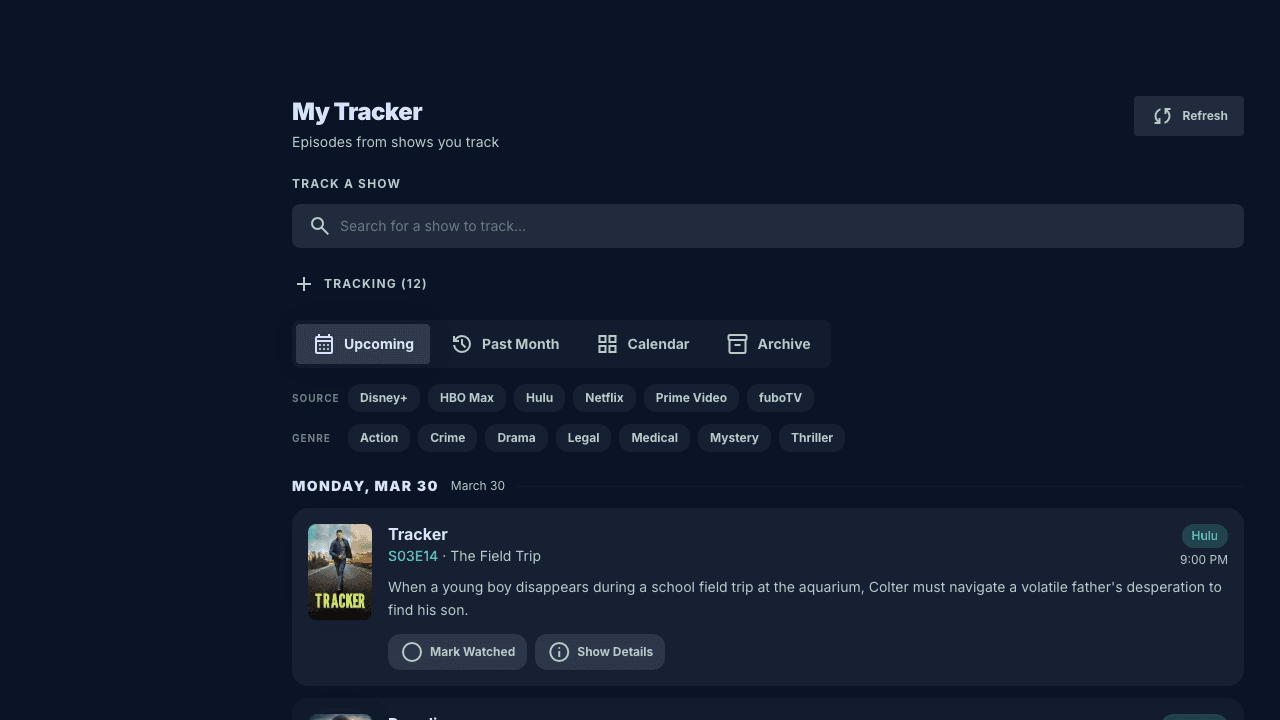
How to track a show
Open Discover and search
Use the search bar at the top of the Discover page. Type the name of the show you want to track and select it from the results.
Click "Track"
On any TV show card, click the Track button. The show is immediately added to your tracker and will appear in your dashboard.
Episodes appear automatically
WatchDeck pulls episode data and groups it by air date under Upcoming, Past Month, and Calendar tabs.
Mark episodes as watched
Tap the checkmark on any episode card. Your progress is saved. Marking all episodes of a season as watched will automatically move to the next.
Upcoming Tab
Episodes grouped by date over the next two weeks — Today, Tomorrow, and upcoming dates. The clearest view of what's on and what's coming.
Past Month Tab
Episodes that aired in the last 30 days. Useful for catching up on shows you've fallen behind on — all in one scrollable list.
Calendar View
A full monthly calendar showing episode air dates across all your tracked shows. Switch months to plan ahead or look back.
Filter by Show or Genre
Use the filter chips to focus the episode list on a specific show or genre. Useful when you're following many series at once.
Hide Watched Toggle
Toggle off already-watched episodes to keep the list clean and focused on what's still ahead. Your progress is preserved even when hidden.
Bulk Mark Watched
Inside a show's detail view, you can mark entire seasons as watched at once — no need to tick each episode individually.
Use the Calendar tab when you want a weekly overview of everything airing across all your tracked shows. It's particularly useful at the start of a new TV season when multiple shows premiere at once.
Movie Watchlist
Your personal movie queue — smarter. WatchDeck tracks availability across your streaming services and warns you before a movie you've saved is about to leave.
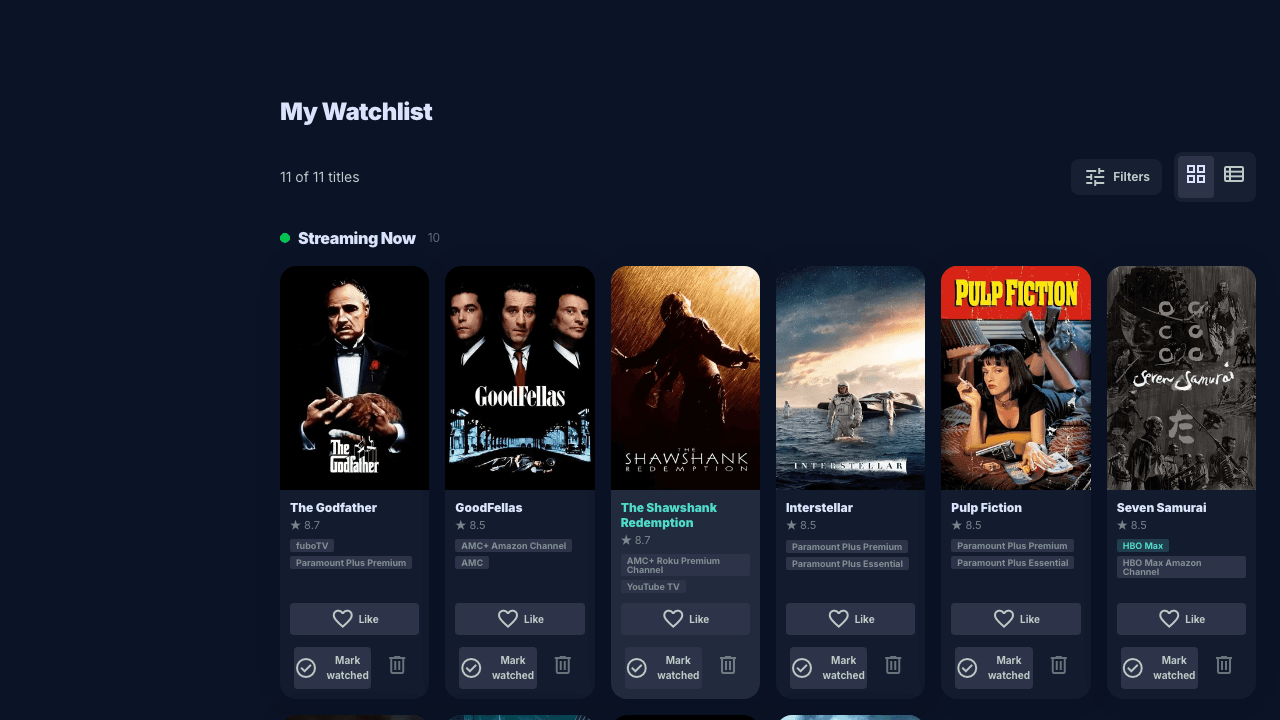
Streaming Now tab
Shows all saved movies currently available on your connected streaming services. This list updates automatically as availability changes — you don't need to check manually.
Coming Soon tab
Movies you've saved that aren't yet available on your services. WatchDeck monitors them and moves them to Streaming Now the moment they appear on a service you subscribe to.
Archived tab
Movies you've marked as watched. They move here automatically when you click Watched, so your active watchlist stays clean. You can always unarchive a movie if you want to watch it again.
Leaving Soon alerts
An amber badge and inline alert appears on any movie about to leave one of your services. The alert shows exactly which service and how many days are left — so you can watch it before it disappears.
Filter by service or genre
Use the filter button to narrow your watchlist by streaming service or genre. Useful when you only want to see what's available on a specific service tonight.
Like / Favourite
Heart icon on each card saves the movie to your favourites. Likes are factored into future recommendations — the more you engage, the more accurate your Discover feed becomes.
Leaving Soon alerts are only as accurate as your connected services. Make sure all your streaming subscriptions are connected in Settings so WatchDeck can track availability correctly.
Use the Coming Soon tab as a long-term wishlist. Add movies the moment you hear about them — even if they're still in cinemas or not yet streaming. WatchDeck will notify you when they arrive on your services.
Discover
Personalised recommendations filtered to what you can actually watch. Discover uses a five-tier scoring system to rank content by genre match, service availability, ratings, and popularity — with zero promoted content.
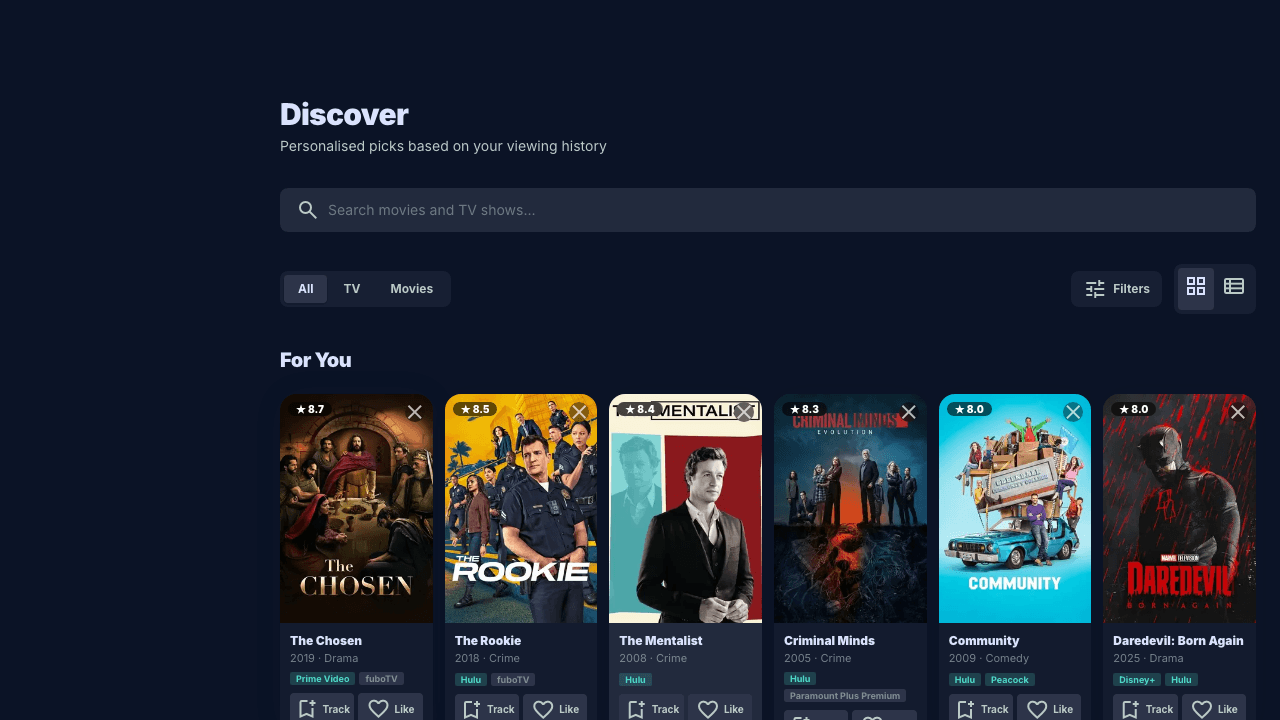
TV Shows / Movies toggle
Switch between TV show recommendations and movie recommendations at the top of the page. Both are scored and filtered independently based on your preferences.
Filter by genre
Click any genre chip to filter results to that genre. Select multiple genres to show content that matches any of them. Genre filters apply across all sections on the page simultaneously.
Filter by streaming service
Use the service filter to show only content available on a specific platform — useful when you want to decide what to watch on a particular service tonight.
Search within Discover
The search bar at the top of Discover lets you search for any specific title. Results show matching TV shows and movies with availability badges so you know exactly where to watch.
Dismiss content
Not interested? Click the dismiss button on any card to permanently hide that title from your Discover feed. It will never appear in recommendations again.
Like content
Heart any title to add it to your favourites. Likes are factored into the recommendation engine — the more you interact, the sharper your recommendations become over time.
How recommendations are scored
Every title in Discover is ranked by a five-tier algorithm. Content is never promoted — the scores are entirely based on your profile.
Genre overlap with your watchlist and favourites (highest weight)
Available on a streaming service you subscribe to
Titles rated 7.0+ on TMDB/IMDb are ranked higher
Genres you've explicitly selected in Settings
A log-scaled boost for widely-watched titles
Genres you've blocked in Settings score -∞ and are always excluded, regardless of other scores.
Content sections on the Discover page
For You (TV / Movies): Your highest-scoring personalised recommendations.
Trending: What's trending across TMDB that isn't already in your For You list.
Upcoming This Week: Shows airing new episodes this week — great for staying current.
New on Streaming: Movies recently added to streaming services.
Top Rated: Highest-rated streaming movies currently on your services.
Coming Soon: Upcoming theatrical releases and soon-to-stream titles.
Your Discover feed improves over time. Like titles you enjoy, dismiss ones you don't, and track shows you want to follow — each action teaches the recommendation engine more about your taste.
Settings
The foundation of a great WatchDeck experience. Your connected services and genre preferences power every recommendation, filter, and availability alert in the app.
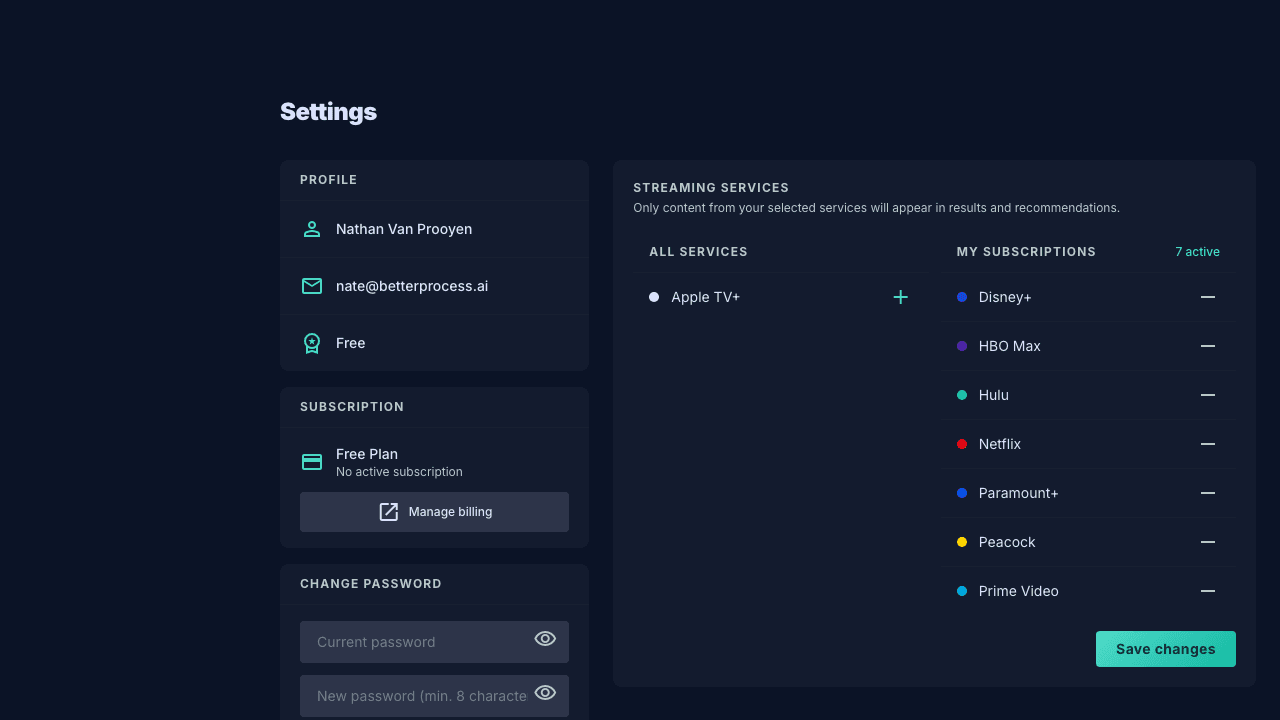
Streaming Services
The service grid shows every streaming platform WatchDeck supports. Tap a service logo to toggle it on or off. Connected services are highlighted with a teal border.
What connected services control
The Streaming Now tab in your Watchlist, the service filter in Discover, Leaving Soon alerts, and recommendation scoring (Tier 2) all depend entirely on your connected services.
Changes apply instantly
Adding or removing a service updates your Discover feed and watchlist availability immediately — no need to reload or wait.
Connect every service you subscribe to — even ones you use occasionally. If a service isn't connected, WatchDeck won't show you content available on it, and you'll miss Leaving Soon alerts for that platform.
Genre Preferences
Genre Preferences has two distinct sections that work together to personalise your recommendations.
Show more of
Genres you enjoy. These are shown as teal pills. Selecting a genre boosts content in that genre across your Discover feed and recommendations (Tier 4 scoring).
Never show
Genres you want permanently blocked. Shown as red pills with ✕. These genres score -∞ in the recommendation engine and are completely excluded from Discover — regardless of any other score.
Set your blocked genres first — this has the most immediate impact on Discover quality. Even one or two well-chosen blocks dramatically reduces irrelevant results.
Profile
Your profile card shows your display name, email address, and current subscription tier. These are read-only — contact support if you need to update your email.
Subscription
Shows your current plan (Free or paid tier) and monthly price. Click Manage billing to update your payment method, change plans, or cancel — this opens the Stripe billing portal.
Change Password
Enter your current password and a new password (minimum 8 characters). Changes take effect immediately. You will not be logged out of your current session.
Tips & Tricks
Get the most out of WatchDeck with these power-user habits. Most take less than a minute to set up but make a significant difference to your day-to-day experience.
Set up services and genres before anything else
Everything in WatchDeck — recommendations, availability, filters, alerts — is driven by your connected services and genre preferences. Spend two minutes on Settings first and the whole app becomes dramatically more useful.
Check Leaving Soon alerts weekly
Movies rotate off streaming services constantly. Check your Watchlist's Streaming Now tab regularly — amber badges show exactly which titles are leaving and when, so you can prioritise what to watch before it's gone.
Use Show Tracker for ongoing series, Watchlist for movies
Show Tracker is built for episodic content you follow week to week. Movie Watchlist is for one-time watches. Keep them separate — your Show Tracker gives you a progress view, your Watchlist gives you availability tracking.
Start from the hero carousel every day
The dashboard carousel surfaces your most relevant next episode across all tracked shows. It's designed to get you from opening the app to pressing play in under ten seconds — no browsing required.
Dismiss aggressively in Discover
If you see a title that's clearly not for you, dismiss it. Dismissed titles never appear in your feed again. The more you dismiss, the more accurately Discover learns what you actually want to see.
Like everything you enjoy
The recommendation engine weights your likes and watchlist additions to build a genre frequency map. The more you interact with content, the stronger the behavioural signal (Tier 1) — your highest-weight recommendation factor.
Search from Discover to find anything
The search bar in Discover searches across all of TMDB — movies and TV shows. If you hear about something and want to add it immediately, search is the fastest path to tracking or saving it.
Use the Calendar for premiere planning
At the start of a new TV season, switch to Calendar view in the Show Tracker. You'll see all premiere dates across every tracked show laid out on a monthly grid — useful for planning which nights you'll be busy.
Have a question not covered here? We're here to help.
mailhello@watchdeck.co